WordPress Development

Brilliant Directories

How to Create a WordPress Theme from an HTML Page?

WordPress Development 10 min read WordPress Development For any business, be it local or global, a highly responsive website is essential for business growth and expansion. Many global brands once started from a static HTML page and kept upgrading their platform over time. Considering the latest development trends, converting HTML pages into a fully responsive WordPress theme is a quick and easy process. It helps improve content management and increases the scalability of your digital platform. A static HTML page can be updated with modern development themes. This step-by-step guide helps you navigate the technical intricacies for a smooth transition. Skip the code confusion and let our team convert your static HTML into a fully responsive WordPress theme. Discuss Your Project Benefits of Converting HTML into a WordPress Theme If you convert a static HTML site to a “dynamic” site using WordPress, you gain a lot more opportunities for creativity and innovation in designing and styling. Editing and managing a website is an easy task with WordPress because of its effective CMS system. Unlike other development engines, WordPress is known for its drag-and-drop features, which save time and make developing and programming sites easier. Other notable features include theme design, plugin customization, and a highly scalable and reliable platform. HTML Page to WordPress Theme Conversion Translating your HTML documents into a WordPress theme is a straightforward process when broken down into manageable steps. Step 1: Prepare Your HTML Files Collect and organize all HTML scripts. Make sure your files are clean, well-structured, and follow standard coding practices. This ensures a smoother and more error-free conversion. Step 2: Create a Theme Folder Navigate to your WordPress installation directory and open wp-content/themes. Create a new folder here—name it something recognizable like my-custom-theme. Step 3: Set Up Core Theme Files Inside your theme folder, include the following essential PHP files: index.php: Displays your main content. header.php: Holds the top section of your site including the logo and navigation. footer.php: Contains the bottom section, such as contact details and copyright. style.css: Controls the visual styling of your theme. Step 4: Insert HTML into PHP Templates Transfer the relevant portions of your HTML into the corresponding PHP files: Header section → header.php Footer section → footer.php Main content → index.php This ensures your static HTML is properly structured within WordPress’s templating system. Step 5: Add WordPress Functionality To enable dynamic features, integrate essential WordPress functions: Use <?php wp_head(); ?> inside header.php Use <?php wp_footer(); ?> inside footer.php These are required for plugins, scripts, and proper WordPress behavior. Step 6: Customize With CSS and Test Responsiveness Edit your style.css to reflect your desired theme style—fonts, colors, layout, etc. Finally, test your theme across multiple devices and browsers to ensure it’s fully responsive and functioning correctly. HTML to WordPress Conversion Challenges When you plan to convert HTML to WordPress, you may face various challenges. Website Responsiveness Issues: Your HTML may not be responsive across different devices. Use CSS media queries in your style.css file to ensure that your theme is responsive to multiple screen widths. Broken HTML Elements: HTML elements may break during the conversion process. Check your code to confirm that all tags are properly closed and nested. Incorrect File Paths: Double-check the file paths in your HTML and PHP files. Incorrect paths can result in faulty pictures, stylesheets, and scripts. Ready to Move from HTML to WordPress? Work with MetaViz’s expert team for seamless migration and customized themes tailored to your brand. Let’s Convert It Together Tips for WordPress Theme Development using HTM Following best practices can ensure a smooth and effective conversion. Clean, modular code: Create tidy, well-commented, and modular code. This makes your theme easy to manage and update. WordPress code Standards: Follow WordPress code guidelines for uniformity and compatibility. Make sure to give importance to responsive design so that your theme looks good both on a phone and a computer. SEO Optimization: Your theme should use appropriate HTML coding and include relevant additional tags so it ranks better on search engines. Cross-Browser Testing: It is important to try your theme on different web browsers. For example, on Chrome, Firefox, Safari, and Edge. How To Import HTML Page Designs into WordPress Once the HTML file has been brought into a theme, you can import different page designs via the WordPress block editor (Gutenberg) or page builder plugins like Elementor. These tools help recreate the look of the HTML page in the WordPress environment. Takeaways The migration of an HTML site to a WordPress theme carries several benefits, such as easier content management, greater customization, and a powerful framework, to name a few. Although some people might find the technical aspects of the process a bit intimidating, the good stuff generally outweighs the bad. For you, if it’s need to have more control over your site, moving to WordPress is undoubtedly a worthwhile transition. Seek Help from Professionals for WordPress Theme Development If the technical knowledge required to carry out this process is difficult to acquire and implement, then it is necessary to hire someone who does. At MetaViz, we concentrate exclusively on developing and customizing WordPress themes and migrating content and sites to WordPress. We can help you move your site from HTML to WordPress and guarantee that it is a safe and accurate conversion. Build Smarter with WordPress! Let us help you convert your HTML site into a powerful, responsive WordPress theme with ease. Get Started Today FAQs Can I copy and paste HTML code into WordPress? Though you can potentially paste HTML directly into a post or page, this is not suggested when developing a theme. Integrating HTML into WordPress theme files is critical for effective functionality and maintenance. How Do I Import a Page Design into WordPress? Import and recreate your HTML-based page layouts using the Gutenberg block editor or page builder plugins. Key steps for converting a static HTML site to WordPress? Create a theme folder, separate the HTML into WordPress template files, and implement the suitable WordPress
Brilliant Directories

Where Is a WP Plugin License Stored in the Database?

WordPress Development 10 min read WordPress Development WordPress plugins are essential for improving a website’s functionality, however, many premium plugins require a valid license for continuous updates and support. These licensing keys are often kept in the WordPress database, allowing the plugin to check its legality. Managing plugin licensing correctly is critical for ensuring website security, functionality, and compliance with plugin providers’ terms of service. Failure to properly handle plugin licensing can result in expired plugins, missing security patches, and even malfunctioning website functionalities. This post will look at how WordPress maintains plugin licenses, typical concerns with their storage, and best practices for maintaining them safely. WordPress Plugin License Storage – Summary Table Topic Summary Storage Location Licenses are stored in the wp_options table as key-value pairs. Common Naming Keys like plugin_name_license_key, plugin_name_license_status, etc. Common Issues Expired keys, missing entries, serialization problems, and security risks. Finding License Keys Use phpMyAdmin and search wp_options with LIKE ‘%license%’. Editing Keys Modify option_value directly but with caution to avoid corruption. Best Practices Encrypt keys, back up regularly, restrict access, avoid hardcoding. Troubleshooting Verify active plugins, renew expired licenses, restore backups, contact support. Security Tip Never store license keys in plain text or expose them in code files. How WordPress Plugin Licenses Are Stored in Databases? WordPress retains plugin license keys in its database, specifically the wp_options table. Typically, license keys are saved as key-value pairs in the wp_options table’s option_name and option_value columns. The structure of this storage method varies depending on the plugin developer, however common naming standards for license keys include: plugin_name_license_key plugin_name_license_status plugin_name_api_key If you have a premium plugin called ‘MyCustomPlugin’, its licensing key may be stored as: option_name: mycustomplugin_license_keyoption_value. Where Are WP Plugin Licenses Stored? Common Issues With Storing WordPress Plugin Licenses Though keeping plugin licensing in a database is convenient, many difficulties may arise: Turn Clicks Into Automation Magic Get Your Free Consultation Today 1. Expired licenses When a plugin’s license expires, it frequently no longer receives updates or support.Users may not receive alerts of expiring licenses, resulting in outdated software. 2. Missing or corrupted database entries If a site migration or database restoration is not completed properly, license keys may be lost or corrupted.Some plugins fail to update their licensing key entries correctly, resulting in activation issues. 3. Incorrect storage format Some plugins save license keys in serialized arrays, which makes manual retrieval more difficult.Users who attempt to manually modify or update licenses risk corrupting the stored data. 4. Security Risks License keys saved in plain text are vulnerable to unauthorized access, and poor database security procedures might expose important plugin data. How to Find and Maintain Plugin License Keys in WordPress To identify or change your WordPress plugin license key, follow these steps: Access the WordPress database.To access your website’s database, use phpMyAdmin (or any other MySQL management tool). Locate the i table.Open phpMyAdmin and navigate to the wp_options table. Search for the license key.Run a SQL query to find license-related entries:SELECT * FROM wp_options WHERE option_name LIKE ‘%license%’; Find keys with option names like plugin_name_license_key. Change or Update the License Key.If you need to alter a key, change the option_value field accordingly.To avoid issues, ensure that the key is formatted appropriately. Best Practices for Securely Storing WordPress Plugin License Keys Follow these easy steps to ensure the security and integrity of your plugin licensing keys: Avoid storing license keys in plain text. Protect sensitive information with encryption techniques. Back up your database regularly. Keep a backup of the database in case it gets corrupted or accidentally removed. Install safe database access controls. Limit access to the WordPress database to avoid unauthorized changes. Don’t hardcode licensing keys into files. Hardcoding keys in wp-config.php or theme files make them vulnerable to attacks. Keep Plugins and WordPress Updated: Outdated plugins might cause security risks. Troubleshooting and Solutions for Plugin Issues If you have problems with plugin licenses, try the following troubleshooting steps: License key not recognizedEnsure that the key is accurately inserted into the wp_options table.Check that the plugin is correctly installed and active. Expired Licence IssuesRenew your license at the plugin provider’s official website.Check that the updated key is reflected in the database. Database CorruptionRestore the database from a backup.Reinstall the affected plugin and reactivate your license. The plugin is still not accepting the licensePlease contact the plugin supplier for verification.Check for any problems with other plugins or themes. Final Words Managing WordPress plugin licenses is critical to site security and operation. Understanding how licenses are stored, applying security best practices, and efficiently resolving issues will allow you to ensure seamless plugin functionality. Do you need help managing your plugin licenses? Contact us for expert assistance.If you’re having trouble with plugin license management, database issues, or security concerns, Metavizpro is here to help. Contact us today to get expert advice on WordPress plugin licensing and database management! FAQs Where does the WordPress plugin license reside in the database? License keys are kept in the wp_options table as key-value pairs. How can I discover my WordPress plugin license key? Use phpMyAdmin or SQL queries to search for license-related entries in the wp_options table. What exactly is the wp_options table used for? It holds a variety of WordPress settings, such as plugin setups and license keys. Can I manually update the plugin license in the database? Yes, you can edit licensing keys directly in the wp_options database; however, make sure the format is accurate. Why does my plugin not accept the licensing key? Common causes include expired keys, erroneous database entries, and verification failures. License keys are kept in the wp_options table as key-value pairs. Use phpMyAdmin or SQL queries to search for license-related entries in the wp_options table. It holds a variety of WordPress settings, such as plugin setups and license keys. Yes, you can edit licensing keys directly in the wp_options database; however, make sure the format is accurate. Common causes include expired keys, erroneous database entries, and verification failures.

Brilliant Directories

How to Install a WordPress Theme: A Complete Guide for Beginners

Other Solutions 10 min read Other Solutions WordPress is one of the most powerful website builders, and choosing the right theme is essential for creating a visually appealing and functional website. Whether you’re launching a business site, blog, or eCommerce store, installing a WordPress theme is one of the first and most important steps. This guide provides a step-by-step walkthrough on how to install a WordPress theme using different methods, troubleshooting common installation issues, and best practices for a smooth setup. Blog Summary Section Key Takeaways Install a Theme from Dashboard Navigate to Appearance > Themes, search for a theme, install, and activate it. Install via FTP Upload the theme folder to wp-content/themes/ using an FTP client and activate it in WordPress. Install via cPanel Upload and extract the theme file through File Manager in cPanel, then activate it. Common Issues & Fixes Missing style.css file → Upload the correct theme folder. Installation stuck? → Increase PHP memory, clear cache. Common Issues Zap not triggering → Check task history- Zap stuck in loop → Add filters- Zap paused → Fix errors or upgrade plan Best Practices Choose a mobile-friendly theme, back up your site before installing, and test in a staging environment. FAQs Covers troubleshooting, activation, and theme selection questions. Step-by-Step Guide to Install a WordPress Theme Installing a WordPress theme is a crucial step in setting up a professional and functional website. Whether you are a beginner or an experienced user, knowing different installation methods can help you work efficiently. This guide covers three common ways to install a theme, ensuring flexibility for all users. There are multiple ways to install a WordPress theme, depending on your preference and level of experience. Below, we’ll explore the three most common methods: Great leadership ALSO means empowering your team with the right tools, like mastering WordPress themes, to build websites that inspire and perform. Sajid Jamil Co-Founder & CEO Install a WordPress Theme from the Dashboard This is the easiest way to install a WordPress theme and is suitable for beginners. Log into WordPress: Navigate to your WordPress dashboard (yoursite.com/wp-admin).Go to Appearance > Themes: Click on Appearance in the left sidebar, then select Themes. Click on Add New: You’ll see a collection of free themes from the WordPress directory. Search for a Theme: Use the search bar to find a theme that suits your needs. Install and Activate: Click Install, and once installed, click Activate to apply the theme to your website. Install a WordPress Theme Using FTP For more advanced users, FTP (File Transfer Protocol) provides greater control over theme installation. Download the Theme: Obtain a .zip file of your theme from a trusted source. Extract the Files: Unzip the file on your computer. Connect to Your Website via FTP: Use an FTP client like FileZilla and log into your server. Navigate to wp-content/themes/: Locate the themes folder inside the wp-content directory. Upload the Theme Folder: Drag and drop the extracted theme folder into this directory. Activate the Theme: Go to Appearance > Themes in WordPress and activate the newly uploaded theme. Install a WordPress Theme via cPanel If your hosting provider offers cPanel, you can install a theme directly through the File Manager. Log into cPanel: Access your hosting account and open cPanel. Go to File Manager: Navigate to public_html/wp-content/themes/.Upload the Theme: Click Upload, select your .zip theme file, and extract it inside the themes folder. Activate the Theme: Visit Appearance > Themes in WordPress and activate your theme. Troubleshooting Common WordPress Theme Installation Issues Even with a straightforward installation process, users often encounter issues that prevent themes from working correctly. Understanding common problems and knowing how to troubleshoot them ensures a smooth experience. This section covers typical installation errors and how to resolve them quickly. Sometimes, installing a theme doesn’t go as smoothly as expected. Here are some common problems and solutions: Theme is Missing Style.css File Ensure you upload the correct zip file (some themes contain an extra folder inside the download package). Extract the file and check that style.css exists within the theme’s root folder before uploading. Theme Installation Fails or Gets Stuck Increase your PHP memory limit via wp-config.php. Clear your browser cache and try again. Check for plugin conflicts by temporarily deactivating plugins. Best Practices for Installing a WordPress Theme Following best practices when installing a WordPress theme not only helps prevent errors but also enhances website performance. From choosing the right theme to setting up a staging environment, these strategies ensure your site remains stable, secure, and visually appealing. Following best practices ensures a smooth installation and prevents potential issues. How to Choose the Right WordPress Theme Ensure the theme is mobile-friendly and responsive. Check for fast loading times and SEO optimization. Read user reviews and check update frequency. Backup Your WordPress Site Before Installing a Theme Before making major changes, create a backup to restore your site if anything goes wrong. Use plugins like UpdraftPlus or BackupBuddy. Manually back up via cPanel > File Manager. Save a copy of your database using phpMyAdmin. Test Your Theme in a Staging Environment Use a staging site to preview the theme before going live. Hosting providers like SiteGround and WP Engine offer built-in staging environments. Infographic Snippet 2: Best Practices Summary Pick a mobile-friendly theme. Backup your site before changes. Test on a staging site before applying live. Are You Ready to Install Your WordPress Theme? Now that you understand the different ways to install a WordPress theme, you are well-equipped to start building your website. Taking the time to follow best practices, troubleshoot common errors, and explore customization options will ensure a smooth experience. Are you ready to get started? Installing a WordPress theme is quick and easy if you follow the correct steps. Whether you’re a beginner using the dashboard or an advanced user preferring FTP or cPanel, this guide ensures a smooth installation process. By following best practices, you can avoid common issues and ensure compatibility with your website. Take the

WordPress Integration with Go High Level (GHL)

We successfully integrated a custom WordPress quote form with Go High Level (GHL) to streamline lead management and automation. Our solution featured a dynamic price calculator that displayed real-time pricing based on user inputs. Upon form submission, data was seamlessly transferred to GHL via API, triggering an automated workflow to create contacts, generate opportunities, and send notifications via email and SMS. The system also distinguished between manually added contacts and WordPress-generated leads, ensuring custom automation for each scenario.

13Sick Home Doctor

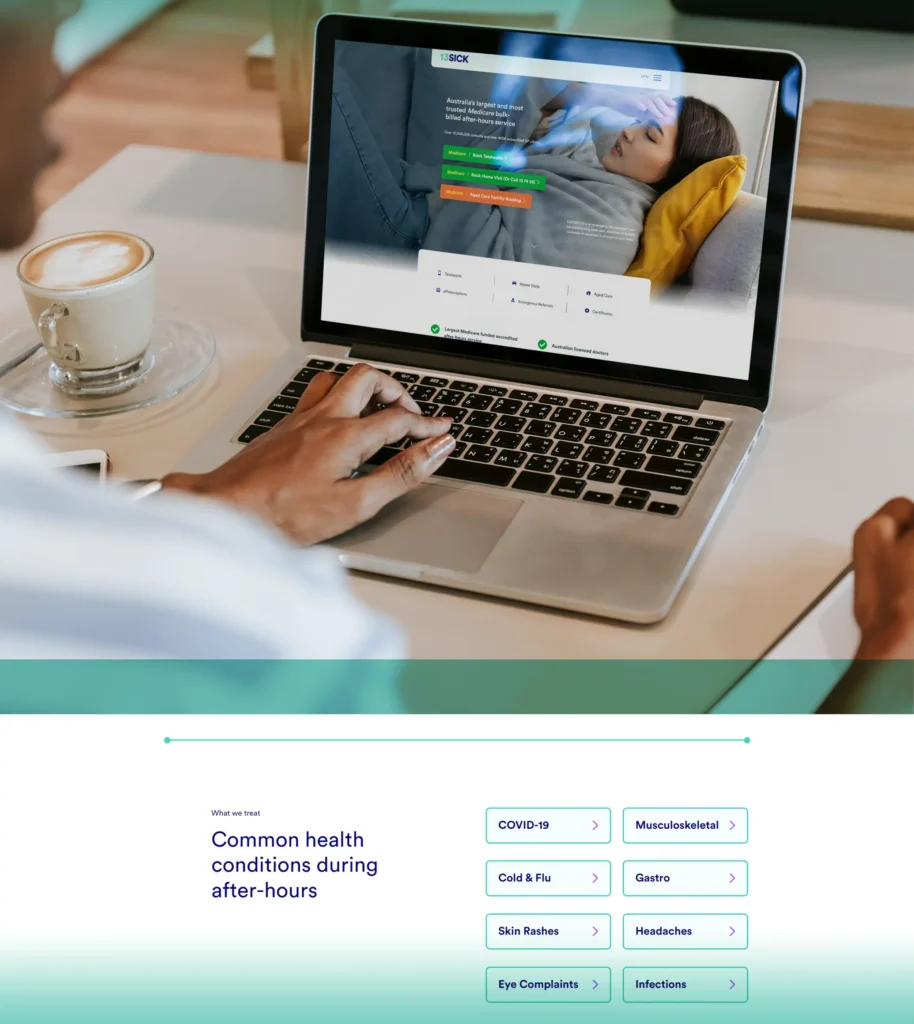
We developed the 13Sick Home Doctor website, Australia’s leading Medicare bulk-billed after-hours healthcare service. The platform enables users to book telehealth consultations and request home visits, ensuring easy access to medical care across major Australian cities. With a clear service eligibility guide, cost transparency, and essential resources, the website simplifies the patient journey, enhancing user experience and accessibility for over 10 million consultations.

General Information

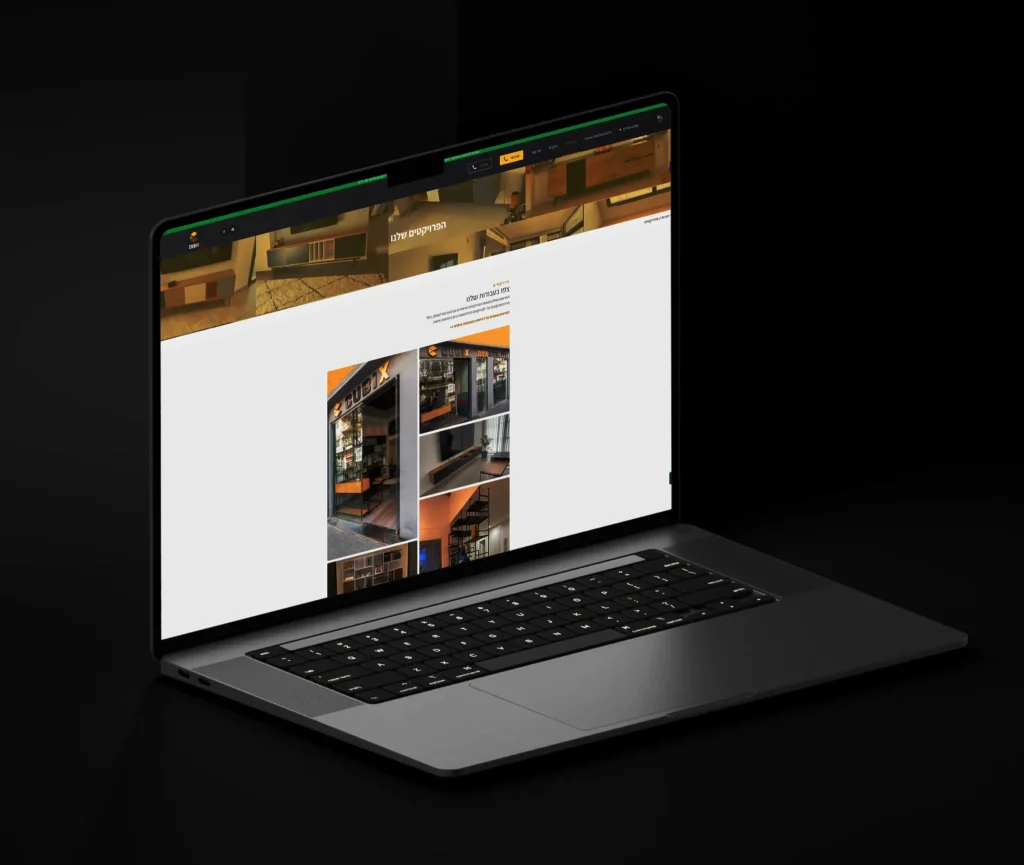
We developed Cubix, a professional platform for custom-designed furniture for homes and offices. The website offers a seamless browsing experience, allowing users to explore a diverse catalog of shelves, tables, and storage solutions. With a focus on personalized service, the platform connects customers with designers to create tailored furniture pieces, enhancing trust and engagement through testimonials and a project gallery.

Ultimate Boat Rental

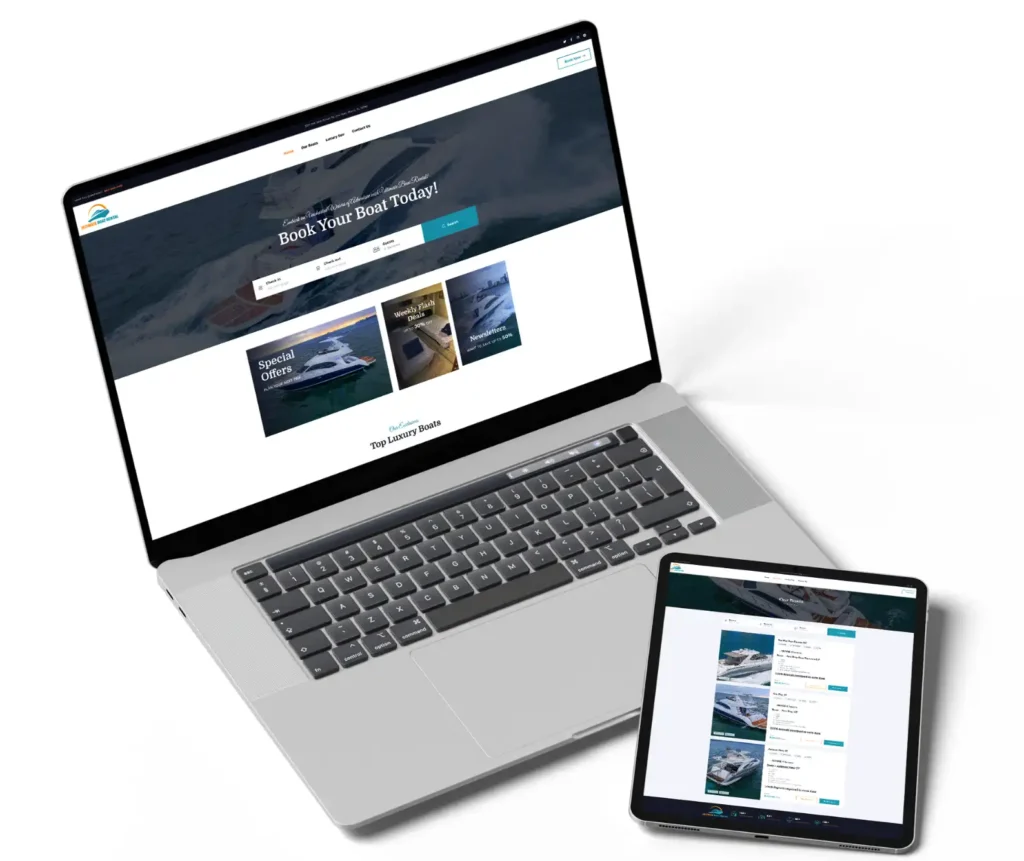
We developed Ultimate Boat Rental, an innovative platform for booking luxury boats in Miami. The website features an intuitive reservation system, a diverse fleet of premium boats, and customer testimonials to enhance user engagement. The streamlined design ensures an effortless booking experience, making it easy for both seasoned boaters and newcomers to enjoy memorable adventures on the water.

Smooth WordPress Migration Without Downtime

“Our company needed to migrate from an old CMS to WordPress. Metaviz planned and executed the migration seamlessly, with no data loss or disruption. They also cleaned up our design and optimized the site for mobile. Traffic improved noticeably after launch, and maintenance is now a breeze. We couldn’t be happier with the end result.”

Reliable WordPress Experts

“We hired Metaviz to build a complex membership site on WordPress. They handled everything from theme customization to plugin integration flawlessly. Their understanding of WordPress architecture really showed through. Support has been excellent even after launch, which we really value. If you want peace of mind with your WordPress project, go with Metaviz.”

Effortless Website Overhaul on WordPress

“Metaviz completely revamped our outdated WordPress site and made it shine. They streamlined the backend, improved page load speed, and added custom features we needed. Their team was responsive, collaborative, and clear with timelines. Now our site looks better, ranks higher, and converts more visitors. It’s been a total game-changer for our online presence.”

Scroll to Top